
Video to MP3 - Video to Audio
InShot Inc.Video Players & Editors
4.79.67K Reviews
- Version
- Varies With Device
- Installs
- 50.00M
- Age Rating
- Everyone
Screenshots
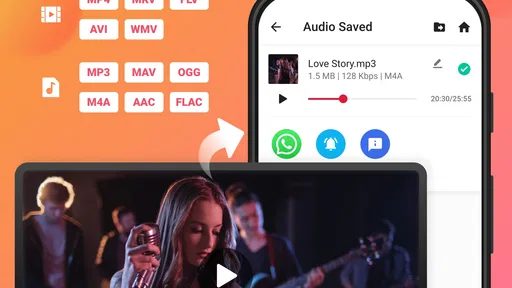
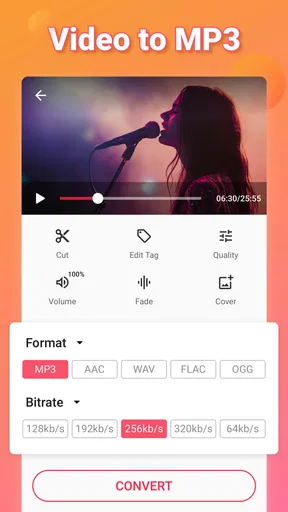
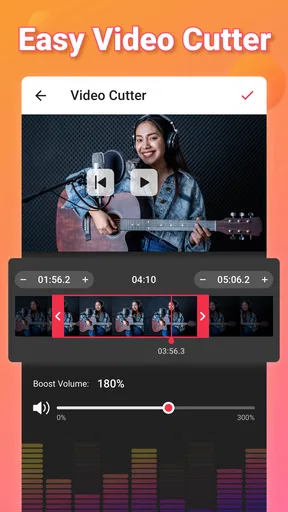
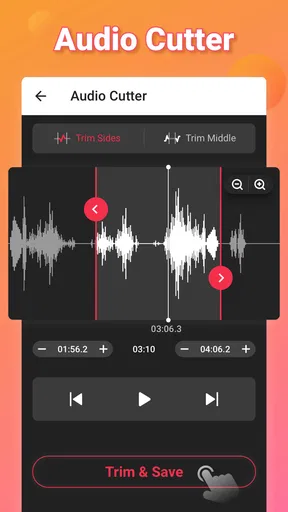
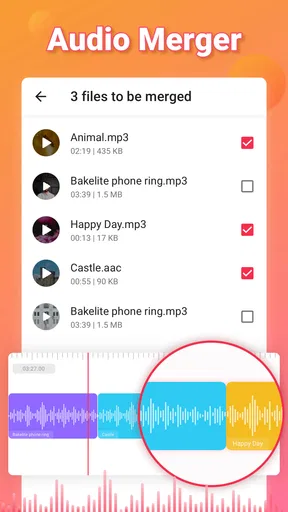
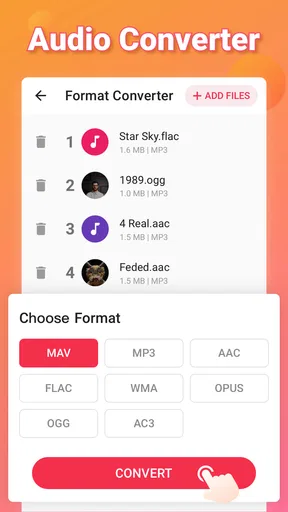
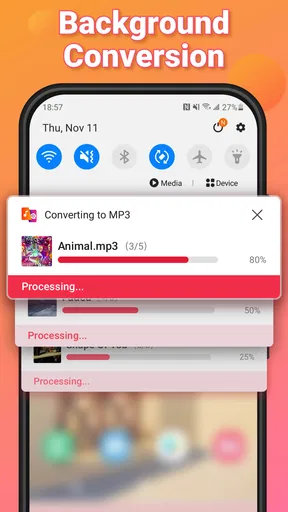
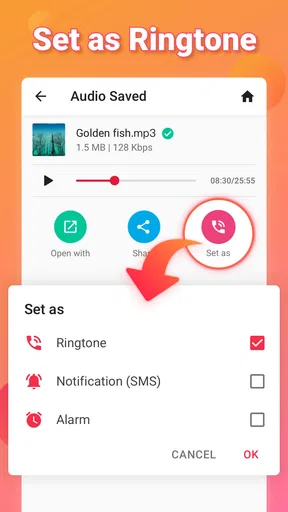
Our Review of Video to MP3 - Video to Audio
 Analysis by Appyee
I tried Video to MP3 - Video to Audio with a simple goal: turn clips already saved on my phone into audio files without opening a full video editor. That narrow purpose is also its main appeal. It is a free Android app from InShot Inc. in the video players and editors category, but it behaves more like a focused conversion and trimming tool than a general-purpose editing suite.
The basic idea is easy to understand. I choose a video, select the part I want, and export the audio. That makes it useful for practical jobs such as saving a spoken section from a recording, isolating music from a personal clip, or preparing a shorter audio file for another project. It is not trying to replace a desktop editor, and I think the experience is better when you treat it as a quick utility rather than an all-in-one production studio.
How the everyday workflow feels
The first thing I noticed is how little setup the app demands. Instead of presenting a crowded timeline with layers, effects, captions, and transitions, it keeps attention on the source video and the audio result. For someone who only needs a conversion, that reduced choice is helpful. I can get to the important action quickly instead of searching through tools that have nothing to do with the task.
My normal workflow starts with selecting a clip from the device. From there, I check the beginning and end carefully, because the quality of the final file depends as much on the selection as on the conversion itself. A short pause at the start of a recording can make the exported audio feel untidy, while cutting too aggressively can remove the first word or musical note. The trimming step is therefore more important than it may look at first.
For a quick voice memo extracted from a video, I usually listen for the exact moment the speech begins and leave a tiny amount of breathing room rather than cutting directly into the first syllable. For music, I check both ends for unwanted silence. This is a small habit, but it makes the result sound more deliberate and saves me from opening another editor just to repair an awkward start or finish.
The app is especially convenient when the video is already on my phone. I do not need to move the clip to a computer, import it into a large editing program, and then export it again. That makes it a sensible choice for casual creators, students working with recorded material, and anyone who wants an audio copy while away from a desktop.
A realistic example is a family recording where somebody says something worth keeping, but the original video is inconvenient to replay. I can select that clip, trim away the visual material I do not need, and create an audio version that is easier to listen to. The same pattern works for a personal rehearsal, a short interview recording, or a reference sound captured inside a video.
The app’s store summary focuses on trimming video and converting video to MP3, and that matches my experience of its role. Its short store description is simply Video to MP3, which is a fair description of the central job rather than a promise of a larger editing system. I would not install it expecting advanced sound design, multitrack work, or professional post-production controls.
What I check before exporting
Before I tap the export control, I review the selected range one more time. This is where experienced use differs from a rushed conversion. I check whether the source has silence, accidental conversation, or a loud handling noise at either end. If the clip contains several useful moments, I decide whether I need one continuous file or separate exports. Making that decision early avoids creating a long file that later needs to be cut again.
I also keep the original video until I have listened to the exported audio. A conversion can be technically successful while still being inconvenient in practice if the wrong section was selected. Keeping the source available gives me an easy way to repeat the process without having to recover the clip from another location.
Another useful habit is naming files immediately after export, if the device workflow allows it. A series of generic audio files becomes confusing quickly, especially when several clips come from the same recording. Names based on the subject and moment are more useful than relying on the export order. This is not a flashy feature, but it is the kind of small routine that makes a simple utility much easier to use repeatedly.
Settings and choices that deserve attention
The most important setting-related question is not how many controls the app offers; it is whether the chosen output suits the way I will use the file. A spoken recording does not need the same treatment as music, and a temporary audio reference does not need the same priorities as a file I plan to keep. I approach every export by asking whether I value speed, compact storage, or the best practical result from the source.
That distinction matters because converting a low-quality video soundtrack cannot recreate detail that was never captured. If the original clip has muffled speech or heavy background noise, changing the output format will not magically repair it. The app is useful for extracting what is already there, but it should not be mistaken for a restoration tool.
When I am working with speech, I pay attention to pauses and room sound. A clean trim can make a recording feel clearer even without audio effects, simply because unnecessary lead-in and trailing noise are gone. For music, I am more cautious about cutting too close to the waveform’s apparent edge, since a visually small change can make the start feel abrupt when played back repeatedly.
Storage is another practical consideration. Audio files are often easier to keep and share than videos, but repeated exports can still leave duplicates behind. I prefer to create one carefully selected version, listen to it, and remove failed attempts rather than exporting several nearly identical files. This is particularly helpful on a phone where media folders can become cluttered without much warning.
There is also a privacy-minded workflow worth adopting: select only the section needed. If a video contains unrelated conversations or personal material, trimming before sharing the audio reduces the chance of sending more than intended. The app’s focused design makes that kind of selective extraction straightforward, although I still review the final file before forwarding it.
The application is free to install and use, with in-app purchases listed from $3.99 to $19.99 per item. That makes it easy to test the basic workflow before deciding whether any optional paid element is worthwhile for my needs. I would not pay automatically just because I occasionally need a conversion; I would first see whether the free experience already covers the frequency and type of work I do.
For a person who converts clips only once in a while, the free entry point is a strong advantage. Someone handling audio every day may judge the app differently, especially if they need detailed control over formats, batch organization, editing precision, or a workflow designed for large projects. In that situation, a more complete editor or a computer-based tool may justify its extra complexity.
Repeatable habits make it faster
After using the app several times, I found that speed comes less from rushing through the interface and more from standardizing my decisions. I use the same order each time: choose the source, identify the useful section, trim with a little care, check the output choice, export, and listen to the result. A repeatable sequence reduces mistakes and prevents me from exporting a file before I have checked its boundaries.
For recurring work, I prepare the source videos first. I remove clips I know I will not use and keep related recordings together, so selecting the correct file is easier. This matters when several videos have similar thumbnails or names. The app can be quick, but it cannot compensate for choosing the wrong source at the beginning.
I also separate “reference” exports from “final” exports in my own storage. A rough audio pull may be enough for checking a line or remembering a melody, while a final file deserves a careful trim and a playback check. Treating those as different jobs keeps me from spending too much time polishing something I only needed temporarily.
One of the more useful non-obvious workflows is extracting audio in stages. If a long video contains several unrelated sections, I first identify the exact ranges and note them down, then process each one deliberately. That is slower than making one careless export, but faster than repeatedly opening the wrong file and trying to locate the same moments again. It also produces files that are easier to understand later.
Another practical pattern is using the app as a bridge rather than the final destination. I may extract the audio here, then move it into a podcast player, a messaging app, a note-taking workflow, or a fuller editor. In that role, its value is simplicity: it handles the conversion step without forcing me to learn a complete editing environment.
For social media clips, I would be more selective. If all I need is the soundtrack from a personal video, this tool is sensible. If I need to synchronize that audio with new footage, adjust several layers, add text, or control transitions, I would skip the conversion-first approach and use a video editor that keeps the visual and audio timelines together.
Where the focused design reaches its limits
The same simplicity that makes the app approachable also defines its limits. I would not choose it for a project requiring detailed waveform editing, noise reduction, multitrack mixing, fades across several clips, or precise synchronization between separate media elements. Those tasks belong to a broader audio or video editor, not a lightweight extraction utility.
It is also not the right choice when the source is difficult to access or when the material needs substantial repair. If a clip has severe distortion, inconsistent volume, or distracting background noise, conversion alone will leave those problems intact. I would extract the audio here only if I planned to clean it elsewhere, and I would avoid promising myself that the export step would improve the recording.
People who work with many files at once may find the phone-centered workflow less comfortable than a desktop application. A computer editor usually offers a larger view, more obvious file management, and better control when a project grows. The app makes sense for individual clips and quick jobs; it becomes less attractive as the number of sources, versions, and revisions increases.
There is also a quality trade-off in choosing a compressed audio format. MP3 is convenient because it is widely supported and usually easier to share than a video, but it is not the ideal choice for every archival or production purpose. If I am extracting audio for casual listening, a compact file is practical. If I am preserving material for later editing, I would prefer a workflow that gives me more control over the audio format and conversion process.
That does not make the app poor at its intended job. It simply means the intended job should be defined honestly. This is a tool for turning a video source into a usable audio file with minimal friction, not a complete answer to every audio problem. Understanding that boundary prevents disappointment and helps me decide when another option is better.
Who will get the most from it
I think it suits people who want a direct answer to a narrow problem. If you have a saved video and need its audio without learning a large editor, the app is easy to justify. It is also useful for occasional personal projects where convenience matters more than extensive control.
Students may appreciate it for pulling speech from their own recorded presentations or practice sessions. Casual creators can use it to prepare audio references before working in another application. Families can turn memorable spoken moments into smaller files that are easier to replay. These uses all benefit from the same quality: the app keeps the conversion path short.
I would recommend skipping it if your main goal is to edit music professionally, repair poor recordings, manage a large library, or produce finished videos with synchronized layers. In those cases, a dedicated audio workstation or full video editor will be more suitable, even if it takes longer to learn.
The app is marked for Everyone, which fits its straightforward purpose and accessible interface. It has also built a substantial audience, with over 50 million installs and a 4.8 average from around 729 thousand ratings. Those figures suggest that the basic concept is easy for many people to understand, although popularity does not remove the need to check whether its limited scope matches my own workflow.
Its developer, InShot Inc., is associated here with a utility that favors quick results over a deep production environment. That distinction is important when comparing it with the usual alternatives. Online converters may avoid installing an app but can be less convenient for private recordings and depend on uploading files. Full editors offer more control but add menus, timelines, and extra export decisions. This app sits between those extremes: more direct than a full editor and more local-device-oriented than a browser conversion routine.
My verdict after using it as a focused tool
I see Video to MP3 - Video to Audio as a practical specialist rather than a miniature studio. Its strongest quality is that it respects a simple request: take the audio from a video, trim it when necessary, and produce something easier to use. The interface approach makes sense for quick personal tasks, and the free starting point lowers the risk of trying it.
The best results come from combining the app with disciplined habits. I choose the source carefully, trim by listening rather than guessing, keep the original until the export is checked, and organize the resulting files immediately. Those steps matter because the app does not need to be complicated to be useful; it needs to fit cleanly into a repeatable routine.
My recommendation is strongest for occasional extraction, short spoken clips, personal recordings, and quick audio references. I would be more cautious for professional work, large batches, serious restoration, or projects where format control and layered editing are central. In those situations, the extra power of a dedicated editor is worth the added effort.
Overall, this is a good example of a focused mobile app doing one common job without pretending to be everything. If your question is “How can I get usable audio from this video quickly on my phone?”, it is a sensible answer. If your question is “How can I finish a complete audio or video production?”, I would look elsewhere. The real strength is the short, repeatable path from saved video to trimmed audio.
Privacy and Permissions
See what permissions an app requests and how it handles your data.
- Photos/Media/Files
- read the contents of your USB storage, modify or delete the contents of your USB storage
- Storage
- read the contents of your USB storage, modify or delete the contents of your USB storage
- Other
- view network connections, full network access, control vibration, prevent device from sleeping, modify system settings
Verdict
Strengths of Video to MP3 - Video to Audio
- Converts video files to MP3 or other audio formats quickly.
- Supports extracting audio from videos stored on your device.
- Simple interface suitable for users with little editing experience.
- Lets you trim unwanted sections before exporting the audio.
- Useful for creating audio clips, ringtones, or music files.
Limitations of Video to MP3 - Video to Audio
- Output quality depends heavily on the original video's audio track.
- Free features may include ads or require in-app purchases.
- Large videos can take noticeable time and storage to process.
- Some formats or codecs may not be supported on every device.
- Copyright restrictions may apply to extracted music and other content.
Other Releases by InShot Inc.
View All
All Video Downloader
Video Players & Editors4.7

Video Downloader
Video Players & Editors4.7

Music Player & MP3 Player
Music & Audio4.7

Video Player All Format
Video Players & Editors4.8
Similar Picks in This Category
View All
Google TV
Google LLC3.9

iTunes
Apple4.7

YouTube
Google LLC3.8

MX Player
Amazon Mobile LLC4.2

CapCut - Video Editor
Bytedance Pte. Ltd.3.5

PLAYit-All in One Video Player
PLAYIT TECHNOLOGY PTE. LTD.4.5
Frequently Asked Questions
What is Video to MP3 - Video to Audio used for?
Video to MP3 - Video to Audio is designed to extract the audio track from a video and save it as an audio file. It can be useful when you want to turn music videos, interviews, lectures, recordings, or other clips into files that are easier to listen to offline. The available output formats and conversion options may depend on the app version and the device you use.
Which video and audio formats does the app support?
The application generally works with common video files stored on your device and converts their sound into popular audio formats, such as MP3. However, format compatibility can vary depending on the source file, operating system, and app release. Before converting an important recording, it is worth checking the format list shown inside the app and testing a short clip to confirm the result.
Can I choose the audio quality, bitrate, or part of the video to convert?
Many users install this type of converter because they want more control than simply extracting an entire soundtrack. Video to MP3 - Video to Audio may provide options such as selecting an output quality, changing the bitrate, trimming a section, or choosing a destination folder. The exact tools can differ by version, so review the conversion screen before starting a large or lengthy file.
Does Video to MP3 - Video to Audio work without an internet connection?
If the video is already saved on your phone, the basic conversion process can usually be completed locally without uploading the file to an online service. This is convenient for travel, privacy, and situations with limited connectivity. Nevertheless, advertisements, updates, analytics, or certain optional features may require internet access. Make sure the media permission requested by the app is enabled so it can find your files.
Is it safe and legal to convert videos into MP3 files?
The app itself is a media-conversion tool, but the legality of the resulting audio depends on the video and how you use it. Converting personal recordings or content for which you have permission is generally the safest approach. Downloading, extracting, or sharing copyrighted music without authorization may violate copyright rules or a platform’s terms. Also review the app’s permissions and privacy information before granting access to your media.
